Intro
Part 1 covered why KQL jobs can’t count every event exactly once, and the idea behind the Fabric solution. This part is the hands-on implementation.
This article is for readers who want to build it themselves: we go from an empty Fabric workspace to a scheduled notebook that summarizes CommonSecurityLog and sends the summary back to Sentinel.
The code is in the repo: every notebook cell as a separate file, so you can open any of them and paste it into a cell of your own notebook as you follow the guide. In the article, I show the parts that make the pattern work, and describe the rest.
Before you start
Already in place
Ensure the following things are already in place:
- Azure Monitor mirroring is enabled, and a Mirrored Azure Monitor item -
SentinelISin this post - exists in a Fabric workspace, withCommonSecurityLogselected for mirroring. If not, Microsoft’s tutorial covers it. - A destination in Sentinel: a custom table and a
DirectDCR to send the summary to. I don’t cover their deployment here - my DCR series does.
The notebook expects the table FwFlowSummary_CL, the stream Custom-FwFlowSummary, and these columns:
| Column | Type | Column | Type | |
|---|---|---|---|---|
TimeGenerated |
datetime | BinStart |
datetime | |
SourceIP |
string | BinEnd |
datetime | |
DestinationIP |
string | Events |
long | |
DestinationPort |
int | PipelineId |
string | |
Computer |
string | BatchId |
long | |
Protocol |
string |
This is just the example I use here. Your summary can be anything - what you group by and what you send is up to you. Only TimeGenerated, BinStart, BinEnd, PipelineId and BatchId belong to the pattern itself; the rest is the flow definition. Change it in the notebook and in the DCR stream together.
PipelineId: identifies which notebook or version sent a row, so BatchIds that restart at 0 after a checkpoint reset, or come from a second notebook writing to the same table, aren’t mistaken for duplicates.
Permissions
Three identities are involved: you, while setting it up; the service principal, which sends the data; and the schedule owner - the user whose identity every scheduled run uses (more on that in Step 1). You can be the schedule owner yourself.
| Who | Role | Scope | Why |
|---|---|---|---|
| You | Contributor (or higher) | Fabric workspace | Create the Lakehouse and the shortcut, import and schedule the notebook |
| You | Permission to create app registrations | Entra ID | Create the service principal - allowed for all users by default, otherwise Application Developer |
| You | Owner, User Access Administrator or Role Based Access Control Administrator | The DCR and the Key Vault | Assign the two roles below |
| You | Key Vault Secrets Officer | Key Vault | Store the client secret |
| You | Log Analytics Contributor | Sentinel workspace | Save the deduplication function |
| Service principal | Monitoring Metrics Publisher | The DCR | Send data through the Logs Ingestion API |
| Schedule owner | Contributor (or higher) | Fabric workspace | Read the mirrored table, write the checkpoint to the Lakehouse, run the notebook |
| Schedule owner | Key Vault Secrets User | Key Vault | Read the client secret during the run |
Step 1 - Azure: the service principal and Key Vault
The notebook uses the Logs Ingestion API, which needs an Entra ID identity. We use a service principal for this:
- Create the app registration
fabric-fwflowsummary-sender. Note the tenant ID, the client (application) ID and a new secret. - Give it Monitoring Metrics Publisher on the DCR. The assignment can take up to 30 minutes to work - until then, sending returns HTTP 403.
- Store the client secret in Key Vault as
sentinel-dcr-writer, so it’s never in the notebook. - Give the schedule owner - and yourself, for testing - Key Vault Secrets User on the vault.
The last bullet is the one that catches almost everyone. The notebook reads the secret with the identity of whoever runs it, and a scheduled notebook runs as “the user who created or last updated the schedule.” So it works when you run it, then fails on schedule because a colleague edited the schedule.
Step 2 - Fabric: a Lakehouse and a shortcut
The notebook needs a Lakehouse for two things: (1) a shortcut makes CommonSecurityLog appear inside it without copying anything, so Spark can read it like any Delta table. And (2) it’s where the pipeline keeps its state, so it knows where to pick up in the next round.
In the Fabric workspace:
- Select + New item > Lakehouse, name it
FwSummary, and create it. Leave Lakehouse schemas enabled - it’s the default. - In the Lakehouse, under Tables, right-click on dbo and pick New Table Shortcut > Microsoft OneLake.
- Select the
SentinelIS(Mirrored catalog) item, tickCommonSecurityLog, and confirm.
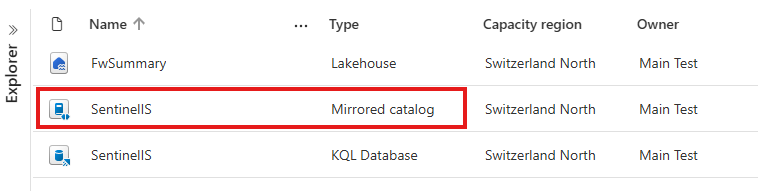 The shortcut points to the mirrored table - nothing is copied
The table now shows up under Tables > dbo, so its path for Spark is Tables/dbo/CommonSecurityLog. In a Lakehouse without schemas, it’s Tables/CommonSecurityLog.
Step 3 - Fabric: the notebook
- In the workspace, select + New item > Notebook, and name it
fw-flow-summary. - In the Explorer pane on the left, click on Add data item, pick the From OneLake catalog option and add the
FwSummaryLakehouse. The first Lakehouse you add becomes the notebook’s default Lakehouse.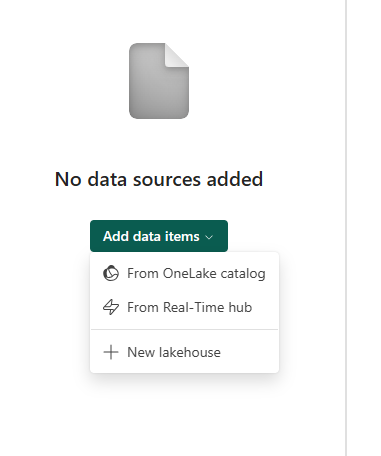 OneLake catalog picker
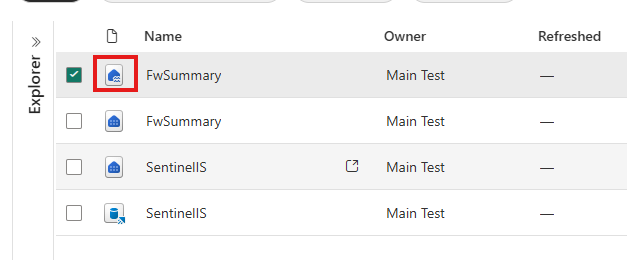 From the list pick the lakehouse option - identify it based on its icon
The default Lakehouse is the setting that matters. All paths in the notebook - Tables/... and Files/... - are relative to it.
That’s all the Fabric configuration. No Environment, no pool settings, no pipeline: the notebook only uses libraries built into the Fabric runtime, calls the REST API directly instead of the azure-monitor-ingestion SDK, and runs fine on the starter pool from a plain notebook schedule.
The code
A notebook is made of cells - blocks of code you can run one at a time or all together. This notebook uses seven of them. For this code I’ve defined two kinds of cells, marked in the first line of each:
[LIVE]- production code, runs on every scheduled run.[TEST]- checks for the first manual runs. They only read data and never send anything. Once everything works, you freeze them, so scheduled runs skip them.
| # | Cell | Type | Code |
|---|---|---|---|
| 1 | Parameters | [LIVE] |
01_parameters.py |
| 2 | Setup | [LIVE] |
02_setup.py |
| 3 | Functions | [LIVE] |
03_functions.py |
| 4 | Is the mirrored table readable? | [TEST] |
04_test_source.py |
| 5 | Does authentication work, and what would we send? | [TEST] |
05_test_auth.py |
| 6 | Run | [LIVE] |
06_run.py |
| 7 | What did this run process? | [TEST] |
07_test_progress.py |
Cell 1 - Parameters
Code: 01_parameters.py
Just a set of parameters: fill them in with the values from Step 1, and collect the rest from your Azure environment.
The source path, bin size and tuning values work as they are, but you can modify them if you want different behavior.
Cell 2 - Setup
Code: 02_setup.py
Imports and basic configuration. It also defines KEYS, the fields the summary groups by. Here, that’s a flow: traffic from one source IP to one destination IP and port over one protocol, as reported by one firewall (Computer). Each flow gets its own row per bin.
KEYS = ["SourceIP", "DestinationIP", "DestinationPort", "Computer", "Protocol"]
Changing KEYS covers simple grouping. For anything more complex - parsing fields, filtering, or aggregations other than a count - you’ll need to extend summarize with a few lines of PySpark.
If this cell fails at getSecret, the identity running the notebook can’t read the secret (Step 1).
Cell 3 - Functions
Code: 03_functions.py
This cell only defines functions - nothing runs yet. First, what a summary row is:
def summarize(batch_df, batch_id):
    """One row per TimeGenerated bin and flow, with the number of events in this batch."""
    return (batch_df
        # Fixed bins instead of a min/max range
        .groupBy(F.window("TimeGenerated", BIN_SIZE).alias("Bin"), *KEYS)   # grouping based on bins and the defined keys
        .agg(F.count(F.lit(1)).alias("Events"))
        .select(F.col("Bin.start").alias("BinStart"),            # BinStart..BinEnd = where to look in the raw logs
                F.col("Bin.end").alias("BinEnd"),
                *KEYS,
                "Events",
                F.lit(PIPELINE_ID).alias("PipelineId"),          # PipelineId + BatchId + BinStart + KEYS = dedup key
                F.lit(batch_id).cast("long").alias("BatchId"),
                F.current_timestamp().alias("TimeGenerated")))   # TimeGenerated is the Notebook processing time
This is “Bins, not ranges” from Part 1: F.window puts every event into its 15-minute bin by TimeGenerated, and groupBy counts the events per bin and flow. You can also use now() as TimeGenerated in the DCR instead of the Notebook processing time.
Then, sending to Sentinel. send_to_sentinel gets a fresh token for the service principal for every batch, and sends the summary in chunks of 2,000 rows (SEND_CHUNK_ROWS), to stay under the API’s 1 MB limit per call.
Then, the two steps from Part 1:
def process_batch(batch_df, batch_id):
    # batch_df = only the rows that ARRIVED (new Delta commits) since the last completed batch

    # Step 1: summarize and send. Raises on failure, so the batch isn't marked as done.
    sent = send_to_sentinel(summarize(batch_df, batch_id))
    print(f"Batch {batch_id}: sent {sent} summary rows")

    # Step 2: returning without an error = Spark marks the batch as done in the checkpoint
Spark calls this function once per batch. Step 2 isn’t code at all: Spark updates the checkpoint itself when the function returns without an error.
Then, where the very first run starts:
def starting_version():
    """The table version the very first run starts from: the newest commit, included."""
    path = CHECKPOINT_PATH + ".start_version"
    if not notebookutils.fs.exists(path):
        newest = DeltaTable.forPath(spark, SOURCE_TABLE_PATH).history(1).select("version").first()[0]
        notebookutils.fs.put(path, str(newest), False)
    return int(notebookutils.fs.head(path))
Without a starting point, a Delta stream’s first run reads the entire table - everything since mirroring started, summarized at once with today’s TimeGenerated. That can be a lot of data. To avoid it, the first run looks up the table’s newest version and saves it to a file, and the stream starts from there: the first run only reads that last commit, and every run after it continues from the checkpoint.
Finally, a lock stops two runs from overlapping - say, a long catch-up run after an outage and the next scheduled one - which would send the same batches twice. Cell 6 takes it with acquire_lock() before the stream starts and releases it with release_lock() at the end.
Cells 4 and 5 - Tests
Code: 04_test_source.py, 05_test_auth.py
Cell 4 reads the last hour of the mirrored table - a normal read, not the stream, so it changes nothing. If it fails, the default Lakehouse or the shortcut path is wrong; if it returns zero rows, no new data has reached the mirror in the last hour.
Cell 5 gets a token, and shows the top 20 summary rows of that hour exactly as they would be sent - without sending them. A wrong client ID or secret fails here. A missing role on the DCR doesn’t: it only shows up as a 403 at the first real send.
Once a test is successful you can freeze it, so it won’t run anymore:
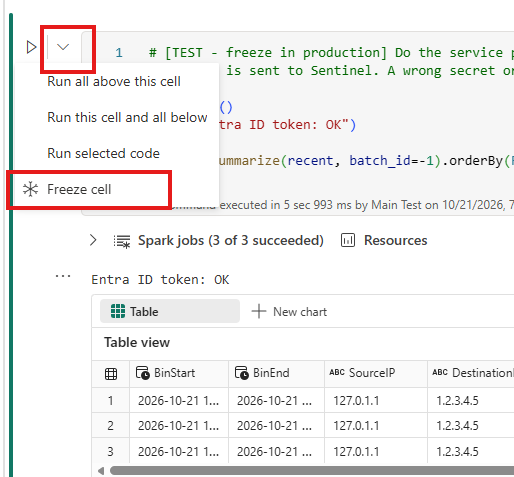 Use the freeze option if you don’t want a cell to run during a full execution
Cell 6 - Run
Code: 06_run.py
This is the core from Part 1. The cell first takes the lock, to ensure no other run is active. Then the stream processes everything that arrived since the last run, batch by batch, and tracks the status.
if not acquire_lock():
    notebookutils.notebook.exit("Skipped: another run is still active.")

try:
    # Delta streaming source: reads the files ADDED by new commits since the last processed table version
    source = (spark.readStream.format("delta")
        .option("startingVersion", starting_version())
        .option("skipChangeCommits", "true")                   # ignore commits that remove data (e.g. retention expiry)
        .option("maxFilesPerTrigger", MAX_FILES_PER_TRIGGER)
        .load(SOURCE_TABLE_PATH))

    query = (source.select("TimeGenerated", *KEYS)            # only the columns the summary needs
        .writeStream
        .foreachBatch(process_batch)                           # step 1 for every batch
        .option("checkpointLocation", CHECKPOINT_PATH)         # step 2: remembers the last processed commit
        .trigger(availableNow=True)                            # not continuous: process what's new, then stop
        .start())

    query.awaitTermination()                                   # otherwise the run ends before the batches do
finally:
    release_lock()
Line by line:
readStream.format("delta")reads the table as a series of commits. Every run gets the rows that arrived since the last processed commit, whatever theirTimeGenerated. This is what makes the processing arrival-based.startingVersionis where the very first ever run starts - to prevent full historical processing. Once the checkpoint has its first batch, Spark ignores it and continues from the checkpoint.skipChangeCommits: when old data reaches the end of its retention, Log Analytics removes it from the table. A Delta stream expects its source to only grow, and stops with an error when data disappears. This option makes it ignore those commits.maxFilesPerTriggersplits a big backlog into smaller batches.foreachBatch(process_batch)hands every batch to our function - step 1.checkpointLocationis where Spark keeps track - step 2. Before a batch starts, Spark writes down which commits it covers; after it succeeds, it marks it as done. A run that dies in between replays exactly that batch next time.trigger(availableNow=True)processes everything that’s new, then stops. The notebook works as a scheduled job, not as an always-on stream.awaitTermination()waits for all batches to finish before closing.finally: release_lock()removes the lock.
Cell 7 - What did this run process? (test)
Code: 07_test_progress.py
One line per batch: its ID and how many raw rows it read.
Run this cell to confirm data is flowing before you move forward.
Step 4 - Test, freeze, schedule
- Select Run all. The first run pins the starting version and only processes the newest commit, so expect a small batch 0.
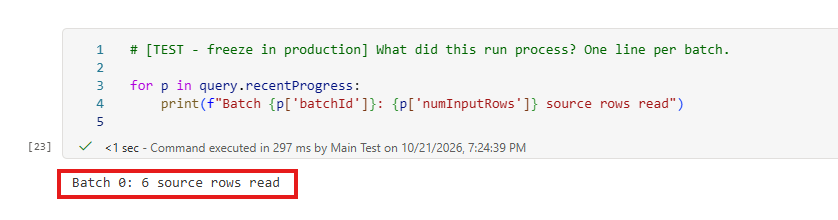 The first run: batch 0 shows the result of the first test execution
-
Check Sentinel. The first rows of a new table can take a few minutes to appear:
FwFlowSummary_CL | summarize Rows = count(), Events = sum(Events) by BatchId | order by BatchId desc -
Run all again a few minutes later. Cell 7 should show a new batch ID with only the rows that arrived in between.
-
Freeze the test cells (4, 5 and 7) with the freeze option on each cell’s toolbar. Frozen cells don’t run, so scheduled runs execute only the
[LIVE]cells. To debug later, just unfreeze them. -
Schedule the notebook: Run > Schedule, every 30 minutes. Remember that the user who saves the schedule becomes its owner - the identity of every scheduled run.
 Open the scheduler
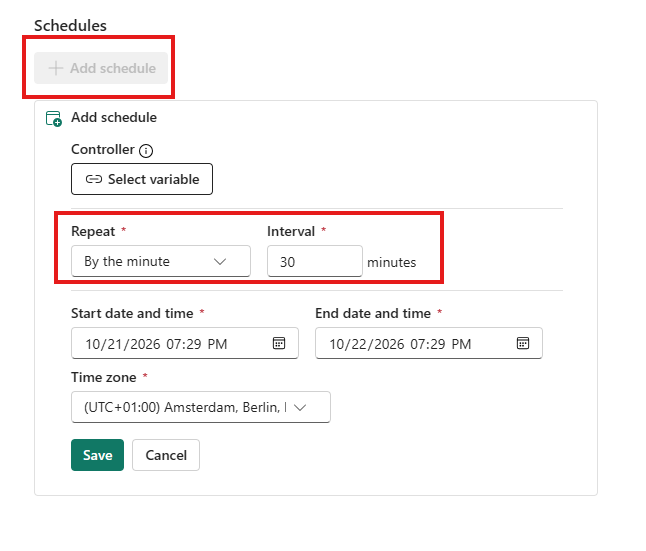 Every 30 minutes - and the user who saves this becomes the identity of every run
Step 5 - Sentinel: the deduplication function
In Sentinel’s Logs, run this query and save it as a function named FwFlowSummary:
FwFlowSummary_CL
| summarize arg_min(TimeGenerated, *)
    by PipelineId, BatchId, BinStart, SourceIP, DestinationIP, DestinationPort, Computer, Protocol
Use FwFlowSummary in rules and hunting instead of the raw table.
Operating it
A few things to know once it’s running:
- Failed runs. The next run retries every failed batch, so we don’t lose data. But a run that fails every time on the same batch - usually a 403, or a mismatch between the summary columns and the DCR stream - blocks everything behind it. Nothing is lost, but nothing moves until it’s fixed.
- Missing data. An Analytics rule that alerts when
FwFlowSummary_CLreceived no rows in the last X minutes catches anything that stops delivery. - The client secret expires. Put the date in your calendar.
- First run miss. The first run of the Notebook only picks up the last commit. Anything older is not processed.
- No SDK usage. Libraries like
azure-identityandazure-monitor-ingestionwould make the code shorter and more resilient, but they need a Fabric Environment to install them. For production, I recommend using them for built-in retry and error handling; for this PoC, I kept the setup minimal.
Closing thoughts
The whole setup is one Lakehouse, one shortcut, one notebook and a schedule. In the notebook itself, the real work happens in cell 6’s stream; everything else is plumbing: authenticate, send, and don’t let two runs overlap.
If you haven’t touched Fabric before, this is a good first project: small, useful, and it teaches the two things you’ll need for anything bigger - how Lakehouse paths work, and whose identity a scheduled notebook runs as.
References: